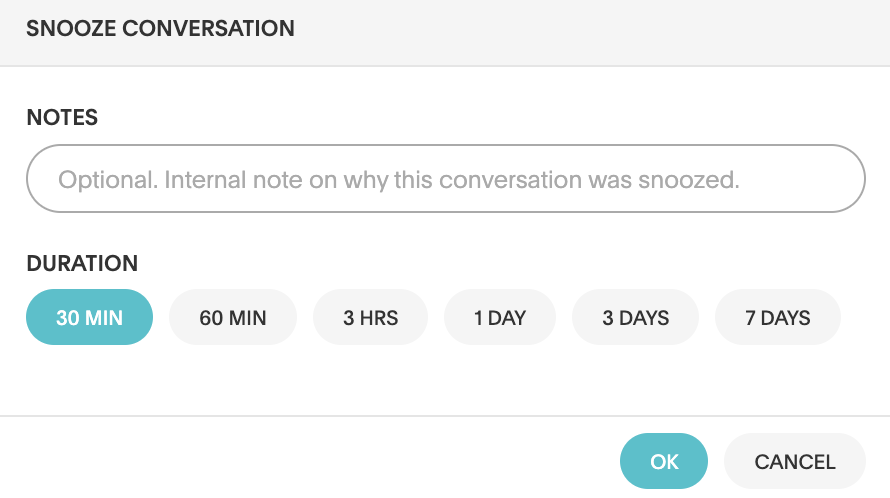
Snooze chats: never miss a follow-up
The Snooze Chat feature is perfect for those times when you need to follow up with a guest but don’t want to clutter your inbox with pinned chats or create a whole new task. Just hit the clock icon to snooze the conversation, and it’ll pop back up at the time you set it. When the time comes, the chat automatically reopens, making sure you and your team won’t forget to follow up. It’s perfect for those moments when you know something needs attention later, but you’re not sure who will be around to handle it.
You’ll get a visual reminder with an orange clock icon next to the snoozed chat in your inbox, so it’s easy to spot and on the guest profile, you’ll even see when the conversation will re-open. It’s a simple way to make sure no guest falls through the cracks without cluttering your inbox from other urgent messages that need attention.
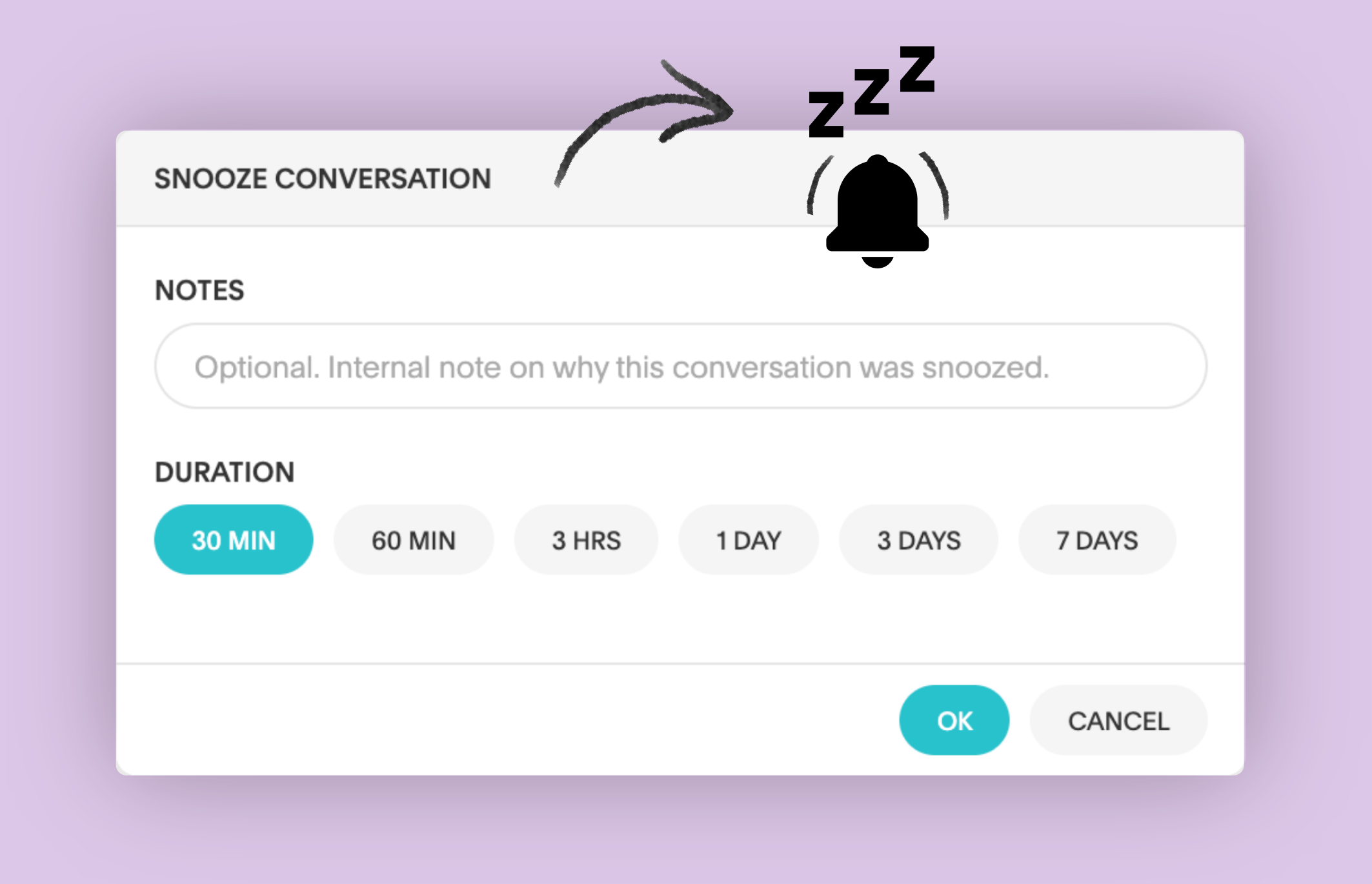
Why Snoozing Chats can keep your guest communication on track without overwhelming staff.
- Delayed guest requests: Imagine a guest asks for something like extra towels or a room service request, but the housekeeping team isn’t available at the moment. Instead of pinning the conversation or creating a task, you can snooze the chat for when the team is back on duty. The chat will reopen at the right time, and whoever is available can handle the request seamlessly.
- Follow-up on unresolved issues: Let’s say a guest reports a minor issue that requires maintenance, but it won’t be addressed until later in the day. You can respond to the guest, set up a snooze on the chat to check up if the maintenance team had fixed the issue.
- Managing busy periods: During peak times, such as check-in or check-out, staff might receive a flood of guest messages. If a particular conversation isn’t urgent, you can snooze it to come back to it once things calm down. This way, important guest questions don’t get forgotten during busy hours but are handled when there’s time.
This ensures that a task that does not require urgent attention at the moment, won’t take up space in your inbox for other chats that need more assistance.
How it works:
- Click on a guest conversation.
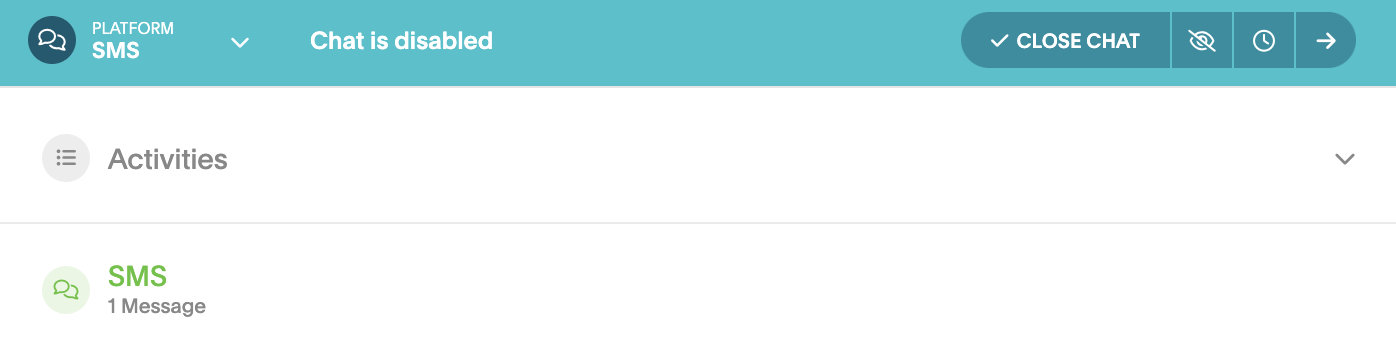
- On the top right, click the Snooze icon.
- Select how long you want to snooze it, and include an optional note to notify your team why it was snoozed.